 Site
How to Migrate from Wix to WordPress: Complete Step-by-Step Guide (2026)
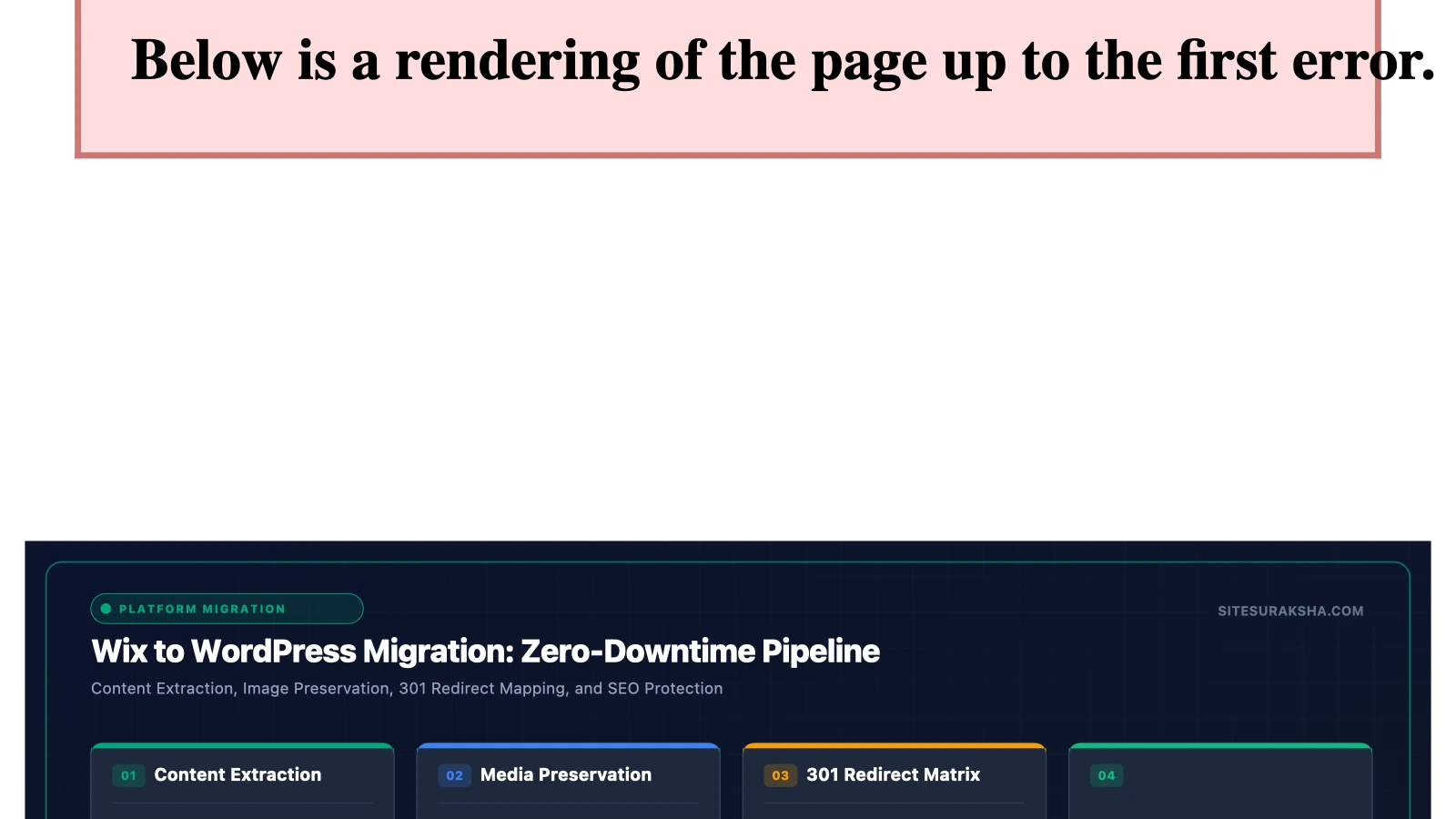
Problem Statement & Impact
Migrating a production web property from a proprietary SaaS platform like Wix to a self-hosted WordPress environment introduces significant technical challenges, primarily due to architectural divergence. Wix operates as a closed, highly abstracted, proprietary website builder where site structure, database management, server configuration, and asset delivery are entirely abstracted from the user. Conversely, WordPress operates as an open-source content management system backed by a relational database (MySQL or MariaDB) and a dynamic PHP execution environment. This fundamental dichotomy means that direct, single-click automated data synchronization of layout structures, dynamic components, and custom applications between the two platforms is fundamentally impossible.
Affected environments include the newly provisioned WordPress core installation, web server configurations (Nginx or Apache), PHP runtime environments, and DNS management zones. Inadequate execution of this migration process can lead to severe technical and business failures. Common consequences include broken internal and external links resulting in 404 HTTP status errors, total loss of organic search engine optimization (SEO) equity due to unmapped URL structures, execution timeout errors (HTTP 504 Gateway Timeout or HTTP 500 Internal Server Error) during bulk media or database imports, and exposure of unsecured administrative interfaces to automated botnets and credential-stuffing attacks.
From a business perspective, unmitigated downtime or catastrophic loss of indexable URLs during the cutover phase directly impacts revenue streams, brand credibility, and search engine visibility. Implementing this migration requires rigorous technical planning, precise DNS management, structured content extraction, and strict post-migration verification protocols to ensure complete data integrity and maximum operational uptime.
Chat with an engineer on WhatsApp within 15 minutes.
Root Cause Analysis & Architecture
The architectural mechanics of a Wix-to-WordPress migration center on the transformation of unstructured or semi-structured flat files and proprietary JSON payloads into standardized relational database schemas and dynamic PHP templates. Wix generates static-looking pages via JavaScript-heavy client-side rendering or proprietary server-side rendering pipelines, storing page configurations, styles, and asset references in a proprietary database inaccessible to direct SQL manipulation. WordPress, however, stores page content, post data, custom post types, and metadata within distinct relational tables, primarily wp_posts, wp_postmeta, wp_terms, and wp_options.
When migrating content via RSS XML exports from Wix, the WordPress Importer processes the payload by parsing the XML tree and executing individual PHP database insertion queries for each post, author, and associated category. If the XML payload contains deeply nested structures, unescaped characters, or exceeds the server’s configured max_execution_time, memory_limit, or post_max_size directives, the PHP process terminates prematurely, resulting in fragmented data imports or database corruption. Furthermore, Wix utilizes flat, fixed URL paths for blog posts (typically structured as /post/slug), whereas WordPress allows dynamic permalink structures configured via the wp_options table under the permalink_structure key. Failing to align URL routing rules during the architecture phase disrupts inbound HTTP request resolution, forcing the web server to return 404 Not Found errors for every legacy incoming link.
Additionally, media assets hosted on Wix Content Delivery Networks (CDNs) use proprietary URI schemes. When migrating text content, if image URLs are not systematically rewritten to point to the new WordPress /wp-content/uploads/ directory, pages will continue to reference external Wix endpoints. If those Wix endpoints are deactivated post-migration, all referenced images will result in broken asset links, degrading page rendering performance and triggering mixed-content or broken-resource alerts in web browsers.
Step-by-Step Implementation & Remediation Guide
Execute the following technical procedures sequentially to ensure a clean, secure, and fully functional migration from Wix to WordPress.
Step 1: Provision and Harden the WordPress Environment
Before moving any data, establish a robust hosting environment running PHP 8.2 or higher, MySQL 8.0+ or MariaDB 10.6+, and a properly configured web server (Nginx recommended). Install the latest WordPress core via WP-CLI to ensure clean file permissions.
# Create root directory and download WordPress core
mkdir -p /var/www/html/wordpress
cd /var/www/html/wordpress
wp core download --version=latest --locale=en_US --allow-root

# Generate secure wp-config.php and database tables
wp config create --dbname="wp_production" --dbuser="wp_db_user" --dbpass="ComplexSecurePassword!2026" --dbhost="localhost" --dbprefix="wps9_" --allow-root
wp core install --url="https://example.com" --title="Migrated Enterprise Site" --admin_user="sysadmin_lead" --admin_password="AdminSecurePassword!2026" --admin_email="[email protected]" --allow-root
Step 2: Export and Clean Wix Blog Content
Access the Wix dashboard, navigate to the Blog settings, and generate the RSS XML export file. Because Wix RSS exports frequently contain legacy markup, malformed entities, or invalid date stamps, sanitize the XML file using a command-line utility or text processor before importing it into WordPress.
# Validate XML structure prior to import
xmllint --noout wix_blog_export.xml

# Import the sanitized XML file using WP-CLI
wp plugin install wordpress-importer --activate --allow-root
wp import wix_blog_export.xml --authors=create --allow-root
Step 3: Programmatically Migrate Standard Pages and Media Assets
Since Wix static pages cannot be exported via XML, extract page content programmatically or construct pages directly within the WordPress block editor (Gutenberg) or via a structured page builder. For media assets, download all images from the Wix media manager, upload them to the local server, and bulk-import them into the WordPress media library.
# Bulk import media files from a local directory into WordPress
wp media import /var/www/html/wix_media_dump/* --porcelain --allow-root
Execute an SQL search-and-replace query to update old asset URLs referencing Wix CDNs to the new local WordPress upload directory.
-- Execute via MySQL CLI to rewrite legacy media paths
UPDATE wps9_posts SET post_content = REPLACE(post_content, 'https://static.wixstatic.com/media/', 'https://example.com/wp-content/uploads/');
UPDATE wps9_postmeta SET meta_value = REPLACE(meta_value, 'https://static.wixstatic.com/media/', 'https://example.com/wp-content/uploads/');
Step 4: Configure 301 Redirects for SEO Continuity
Map every legacy Wix URL structure to its corresponding new WordPress permalink. Create a comprehensive CSV mapping file containing old paths and new paths, then implement these redirects at the Nginx server level for optimal performance, bypassing heavy PHP redirection plugins.
# Sample Nginx server block rule for mapping old Wix blog URLs to WordPress
server {
    listen 443 ssl;
    server_name example.com;

    ssl_certificate /etc/letsencrypt/live/example.com/fullchain.pem;
    ssl_certificate_key /etc/letsencrypt/live/example.com/privkey.pem;

    location / {
        try_files $uri $uri/ /index.php?$args;
    }

    # Redirect old Wix post structure to WordPress structure
    rewrite ^/post/(.*)$ /archives/$1 permanent;
    rewrite ^/about-us-1$ /about/ permanent;
}
Production Hardening & Edge Cases
Self-hosted WordPress environments present distinct attack vectors and operational hurdles that do not exist within closed SaaS builders like Wix. Securing the production environment requires a multi-layered hardening approach.
- File Permissions and Ownership: Ensure that web server user accounts (e.g.,
www-dataornginx) do not own the WordPress root installation files. Set root ownership for core files and restrict write permissions strictly to thewp-content/uploadsdirectory.
# Enforce strict file permissions on the WordPress root
find /var/www/html/wordpress/ -type d -exec chmod 755 {} \;
find /var/www/html/wordpress/ -type f -exec chmod 644 {} \;
chown -R root:www-data /var/www/html/wordpress/
chown -R www-data:www-data /var/www/html/wordpress/wp-content/uploads
- Database Hardening: Modify the default database table prefix (e.g., change
wp_to a randomized string such aswps9_) during installation to mitigate automated SQL injection exploitation. Disable remote database access entirely by binding MySQL strictly to127.0.0.1. - XML-RPC and REST API Restrictions: Disable the legacy
xmlrpc.phpendpoint to prevent brute-force amplification attacks and distributed denial-of-service (DDoS) vectors. If mobile app access is not required, block the endpoint via Nginx configuration:
# Block xmlrpc.php requests in Nginx
location = /xmlrpc.php {
    deny all;
    return 403;
}
- Caching and Performance Conflicts: Implementing aggressive object caching (Redis or Memcached) alongside full-page caching (Nginx FastCGI cache or WP Rocket) significantly reduces database load. However, ensure that administrative cookies bypass the cache layer to prevent administrators from serving cached backend states to authenticated users.
Diagnostic Verification & Checklist
Perform the following post-migration validation checks to confirm system integrity, security posture, and SEO stability.
| Verification Category | Diagnostic Procedure / Command | Expected Result |
|---|---|---|
| HTTP Status Integrity | Run curl -I https://example.com/legacy-wix-page |
Return HTTP/2 301 Moved Permanently pointing to the new WordPress URL. |
| SSL/TLS Handshake | Run openssl s_client -connect example.com:443 -servername example.com |
Valid certificate chain with TLS 1.3 protocol enabled and secure cipher suites. |
| File Integrity Monitoring | Run wp core verify-checksums --allow-root |
Verification confirms all core files match official WordPress checksums. |
| Database Health | Run wp db check --allow-root |
All tables return status ‘OK’ with no corruption detected. |
| REST API Security | Run curl -I https://example.com/wp-json/wp/v2/users |
Endpoint restricted or sanitized to prevent username harvesting. |
Monitor system log files continuously during and after the cutover phase. Inspect error logs located at /var/log/nginx/error.log and /var/www/html/wordpress/wp-content/debug.log for PHP warnings, database connection drops, or unhandled exceptions. Ensure uptime monitoring services poll the root domain every 60 seconds to detect any sudden HTTP 500-series server faults immediately.
Professional WordPress Security & Maintenance
SiteSuraksha delivers comprehensive WordPress security, monitoring, and maintenance solutions to keep your enterprise site safe, fast, and always online.
Is Your Website Fast & Secure?
Run an instant scan for security vulnerabilities, bloated plugins, and TTFB latency.
Need Help Securing or Speeding Up Your Site?
Get 24/7 proactive security WAF, daily cloud backups, and sub-second speed optimization from ₹3,470/mo.