 Site
Best WordPress Accessibility Plugins for 2025 (Free and Premium)
Problem Statement & Impact
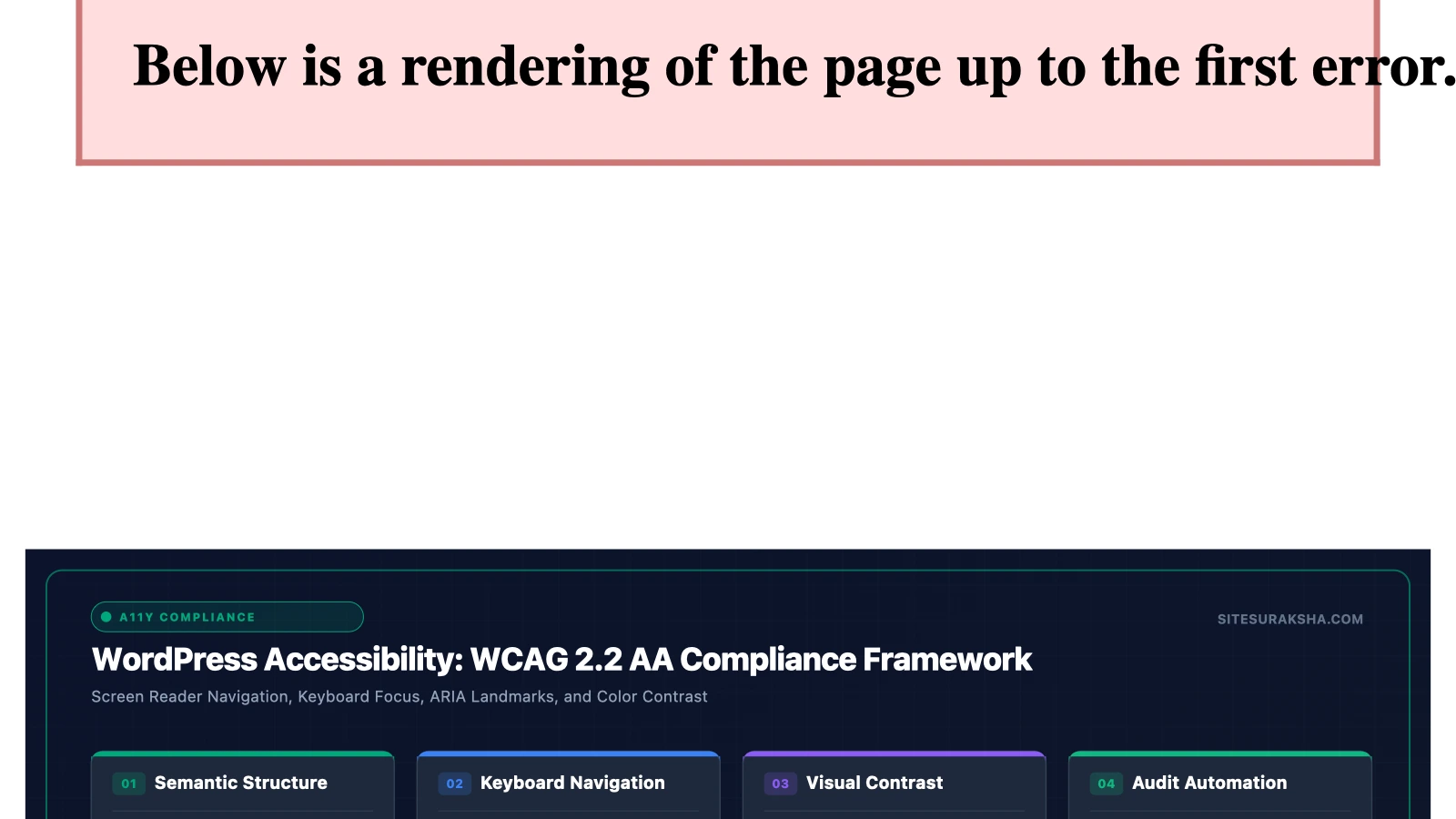
Digital accessibility is a foundational requirement for modern web applications, directly governing how users with visual, auditory, motor, and cognitive impairments interact with WordPress deployments. Failure to implement robust accessibility controls exposes organizations to severe legal liabilities under regional mandates such as the Americans with Disabilities Act (ADA), Section 508, the European Accessibility Act (EAA), and international conformance standards defined by the Web Content Accessibility Guidelines (WCAG) 2.1 and 2.2 at Levels A, AA, and AAA.
From an architectural and security perspective, unmitigated accessibility vulnerabilities stem from improperly structured Document Object Models (DOM), missing semantic landmarks, absent alternative text for non-text content, insufficient color contrast ratios, and broken keyboard navigation traps. These defects degrade the user experience for assistive technologies such as screen readers (NVDA, JAWS, VoiceOver), switch controls, and braille displays. Furthermore, automated accessibility widgets that inject unvalidated third-party JavaScript payloads can introduce severe client-side security risks, including Cross-Site Scripting (XSS), Content Security Policy (CSP) violations, and DOM-based vulnerabilities.
Organizations that ignore website accessibility face significant financial penalties, mandatory litigation defense costs, reputational damage, and loss of revenue from alienated demographics. Conversely, implementing programmatic accessibility controls optimizes code semantics, improves search engine crawler indexing, and ensures strict compliance across enterprise WordPress infrastructures.
Chat with an engineer on WhatsApp within 15 minutes.
Root Cause Analysis & Architecture
Accessibility failures in WordPress typically originate at three distinct architectural layers: theme templates, plugin-generated output, and user-submitted content. WordPress core provides baseline tools, but default themes and custom page builders often generate non-compliant HTML output. Common structural failures include:
- Broken Heading Hierarchies: Skipping semantic heading levels (e.g., jumping from an
<h1>directly to an<h4>) disorients screen reader users who rely on heading trees to navigate page sections. - Missing ARIA Landmarks: Omitting Accessible Rich Internet Applications (ARIA) attributes (such as
role="navigation",role="main", orrole="complementary") prevents assistive software from identifying core layout regions. - Keyboard Focus Traps: Modals, dropdown menus, and JavaScript-driven sliders that fail to return focus to the triggering element upon closure lock keyboard-only users out of the rest of the page.
- Insufficient Contrast Ratios: Text elements that do not maintain a minimum contrast ratio of 4.5:1 for normal text and 3:1 for large text against their background violate WCAG 1.4.3 specifications.
When selecting accessibility plugins, administrators must evaluate whether the solution alters the server-rendered DOM via backend PHP processing or injects client-side remediation scripts. Backend remediation plugins modify theme output, inject skip links, and enforce strict markup standards before page delivery. Client-side widget overlays attempt to dynamically rewrite the DOM via JavaScript after the page loads. While overlays provide rapid deployment, they frequently fail compliance audits because they do not fix underlying source code defects and can interfere with native assistive technology execution.
Step-by-Step Implementation & Remediation Guide
To establish a fully compliant and secure accessibility posture in WordPress, administrators must combine programmatic theme modifications, native plugin configurations, and automated testing pipelines. The following implementation guide details the technical steps required to remediate common WordPress accessibility deficiencies.
Step 1: Enforce Semantic Markup and Skip Links via Functions.php
Assistive technology users require bypass blocks (skip links) to jump past repetitive navigation menus directly to the main content area. Add the following code snippet to your active theme’s functions.php file or a custom site-specific plugin to inject a native skip link into the DOM.
/
 * Add skip link to the beginning of the body for accessibility.
 */
function sitesuraksha_add_skip_link() {
    echo '<a class="skip-link screen-reader-text" href="#primary">' . esc_html__( 'Skip to content', 'sitesuraksha' ) . '</a>';
}
add_action( 'wp_body_open', 'sitesuraksha_add_skip_link', 5 );

/
 * Ensure screen-reader-text CSS class is globally available.
 */
function sitesuraksha_accessibility_styles() {
    echo '<style>
    .screen-reader-text {
        border: 0;
        clip: rect(1px, 1px, 1px, 1px);
        clip-path: inset(50%);
        height: 1px;
        margin: -1px;
        overflow: hidden;
        padding: 0;
        position: absolute;
        width: 1px;
        word-wrap: normal !important;
    }
    .screen-reader-text:focus {
        background-color: #f1f1f1;
        border-radius: 3px;
        box-shadow: 0 0 2px 2px rgba(0, 0, 0, 0.6);
        clip: auto !important;
        clip-path: none;
        color: #21759b;
        display: block;
        font-size: 0.875rem;
        height: auto;
        left: 5.25rem;
        top: 5.25rem;
        padding: 15px 23px 14px;
        text-decoration: none;
        width: auto;
        z-index: 100000;
    }
    </style>';
}
add_action( 'wp_head', 'sitesuraksha_accessibility_styles' );
Step 2: Install and Configure WP Accessibility via WP-CLI
For programmatic backend remediation without performance-heavy client-side JavaScript widgets, install the open-source WP Accessibility plugin. Execute the following commands via WP-CLI to install, activate, and configure core options:
# Install WP Accessibility from the official repository
wp plugin install wp-accessibility --activate

# Enable core accessibility options via WP-CLI options table update
wp option update wpa_skip_links 1
wp option update wpa_focus_outline 1
wp option update wpa_target_blank 1
wp option update wpa_images_alt 1
Explanation of configuration parameters:
wpa_skip_links: Automatically generates jump links for themes lacking native bypass blocks.wpa_focus_outline: Forces persistent CSS focus outlines on interactive elements, ensuring keyboard users can track their DOM position.wpa_target_blank: Appends screen-reader warning text to links that open in new windows or tabs.wpa_images_alt: Forces authors to supply alternative text attributes upon image upload.
Step 3: Implement Content Security Policy (CSP) for External Accessibility Scripts
If utilizing commercial SaaS accessibility overlays (such as UserWay or AccessiBe), you must secure your HTTP response headers to prevent unauthorized script execution and man-in-the-middle data injection. Add the following directives to your Nginx server block or Apache .htaccess file.
Nginx Configuration:
add_header Content-Security-Policy "default-src 'self'; script-src 'self' 'unsafe-inline' https://cdn.userway.org; connect-src 'self' https://api.userway.org; style-src 'self' 'unsafe-inline' https://cdn.userway.org; img-src 'self' data: https:;" always;
Apache .htaccess Configuration:
<IfModule mod_headers.c>
    Header set Content-Security-Policy "default-src 'self'; script-src 'self' 'unsafe-inline' https://cdn.userway.org; connect-src 'self' https://api.userway.org; style-src 'self' 'unsafe-inline' https://cdn.userway.org; img-src 'self' data: https:;"
</IfModule>
Production Hardening & Edge Cases
Deploying accessibility tools in enterprise production environments requires careful mitigation of caching conflicts, performance bottlenecks, and script execution order.
- Page Caching Interactions: Aggressive full-page caching engines (such as Redis Object Cache, Varnish, or plugin-based page caching like WP Rocket) can strip dynamic accessibility attributes or serve stale DOM structures. Ensure that accessibility tool scripts are excluded from JavaScript minification and combination routines to prevent breaking asynchronous event listeners.
- DOM Mutation Conflicts: Client-side accessibility overlays that manipulate the DOM in real-time can conflict with Single Page Application (SPA) transitions, infinite scroll plugins, and lazy-loading image scripts. Always test accessibility widgets against custom AJAX-driven pagination routines in a staging environment before pushing to production.
- Color Contrast Overrides: Automated contrast adjustment tools can inadvertently break brand identity guidelines by shifting color palettes into high-contrast monochrome modes. Configure plugin settings to respect explicit brand color boundaries while maintaining WCAG AA compliance.
To validate your implementation in staging and production, run automated command-line audits using pa11y or Google Lighthouse CI:
# Install Pa11y globally via Node Package Manager
npm install -g pa11y

# Run an accessibility audit against your WordPress staging URL
pa11y https://staging.example.com --standard WCAG2AA
Diagnostic Verification & Checklist
Post-implementation verification requires a systematic audit of both source code mechanics and runtime behavior. Use the following diagnostic verification matrix to confirm full accessibility compliance across your WordPress infrastructure.
| Verification Check | Method / Tool | Target Criteria | Status |
|---|---|---|---|
| Keyboard Navigation | Manual (Tab / Shift+Tab) | All interactive elements reachable; visible focus indicator present; no focus traps. | Pending / Verified |
| Screen Reader Parsing | NVDA / VoiceOver | Semantic headings read in correct order; landmarks identified; alt text announced. | Pending / Verified |
| Color Contrast Audit | WAVE / Axe DevTools | Minimum 4.5:1 ratio for normal text; 3:1 for large text and UI components. | Pending / Verified |
| HTML Validation | W3C Markup Validator | Zero critical syntax errors; unique IDs utilized throughout the DOM. | Pending / Verified |
| Skip Link Functionality | DOM Inspection / Manual | Skip link is the first focusable element; successfully shifts focus to #primary. |
Pending / Verified |
Monitor your web server error logs, browser developer console output, and security incident management systems continuously for CSP violations or script loading failures related to your deployed accessibility solutions.
Is Your Website Fast & Secure?
Run an instant scan for security vulnerabilities, bloated plugins, and TTFB latency.
Need Help Securing or Speeding Up Your Site?
Get 24/7 proactive security WAF, daily cloud backups, and sub-second speed optimization from ₹3,470/mo.